Short guides for everything in UCA PDF Editor - for you on your phone, for company admins in the panel, and for employees signing with the company stamp.
In the app
Open, read and annotate
Tap Open PDF on the home screen, or open a PDF from your mail, messenger or files app with "UCA PDF Editor".
Pinch to zoom, swipe through pages, tap the page number to jump, the thumbnails icon for an overview. The moon icon switches night mode.
Tap the pen to annotate: pen, highlighter, line, arrow, box, circle, note. Undo / redo at the top.
Tap Save (overwrite) or Save as copy. Choose whether notes stay editable annotations or are flattened into the page.
ViewerAnnotate
Add or change text
Tap T and tap where the text should go. Type, then set size, colour, bold and alignment. Drag to move, pull the corner to resize.
To change existing text, tap Edit text and select the line: the app covers it in the background colour and writes your new text in the same size.
Important: covered text is still in the file underneath. Use Flatten page before sending if the old text must be gone for good.
Pages, merge and split
Open Pages: drag pages to reorder; long-press for rotate, duplicate, delete or extract.
Insert a blank page, pages from another PDF, or photos.
Merge on the home screen: pick several PDFs, put them in order, save one file.
Split: every page, ranges like 1-3,5,8-10, or every N pages.
Pages
Sign a document
Tap the signature icon, then New signature. Draw it with your finger or a pen (black or blue) and save it. It is stored encrypted on your phone.
Tap where it should go, resize and rotate it, then save the PDF.
Legally this is a simple electronic signature: good evidence, fine for most business documents, but not a qualified signature and not a replacement for the written form (details).
Signature pad
Stamps
Tap the stamp icon and pick one: Paid, Checked, Draft, Copy, Received (with date), Approved, Confidential, Cancelled.
Make your own text stamp (with or without date) or use a picture of your stamp.
Place, resize and rotate it like a signature.
Lock and unlock
Lock: set a password to open the PDF and/or forbid printing, copying or changes (AES-256).
Unlock: open the PDF with its password and remove the protection. Without the password nothing is removed.
Scan paper to PDF
Tap Scan and allow the camera. Hold the phone over the page: the blue outline shows the detected edges.
Take the photo, drag the corners if needed, choose a filter (original, grey, black and white, enhanced).
Add more pages, reorder them, then save one PDF. Everything stays on your phone.
Edge detection
PDF to photo, photos to PDF
PDF to images: choose pages, PNG or JPEG and the resolution (72-300 dpi), then save or share.
Images to PDF: pick photos from the gallery, reorder, choose page size and margins, save.
Write an invoice (§ 14 UStG) and an e-invoice
Tap New from template > Rechnung. Fill in your sender data once - the app remembers it.
Add the customer, the date of delivery or service and the items with quantity, price and tax rate (19 %, 7 %, 0 %). Totals per tax rate are calculated for you.
Small business? Switch on § 19 UStG. Reverse charge? Choose § 13b UStG.
Before export the app lists any missing mandatory field. Export as PDF, or as ZUGFeRD / Factur-X (PDF with the XML inside) for business customers.
Keep invoices 8 years unchanged (GoBD). The app is not an archive.
Invoice form
Share with an encrypted link
Tap Share > Create link and choose how long it lives: 1, 7 or 30 days.
The app encrypts the file and uploads it. The key is only in the link (after the "#").
Send the link. The receiver opens it in any browser and downloads the file. You can delete the link in the app at any time.
Share link
Companies
Company admin: set up your company
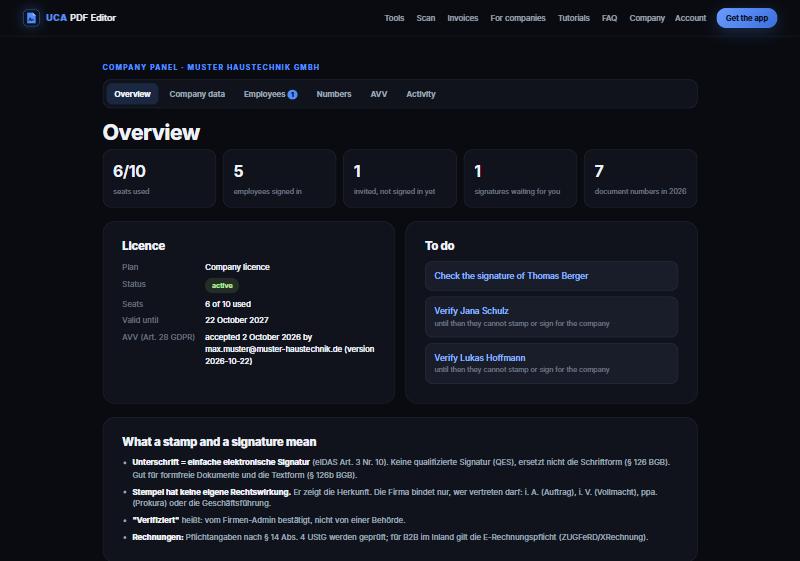
Open the invitation email and click the link, or go to pdf.ucagg.de/company. Enter your email: you get a 6-digit code. No password.
Read and accept the AVV (data processing agreement, Art. 28 GDPR) under "AVV".
Under Company data check name, legal form, address, VAT ID / tax number, register court and number, managing directors and bank. Add extra rows such as your Handwerksrolle number.
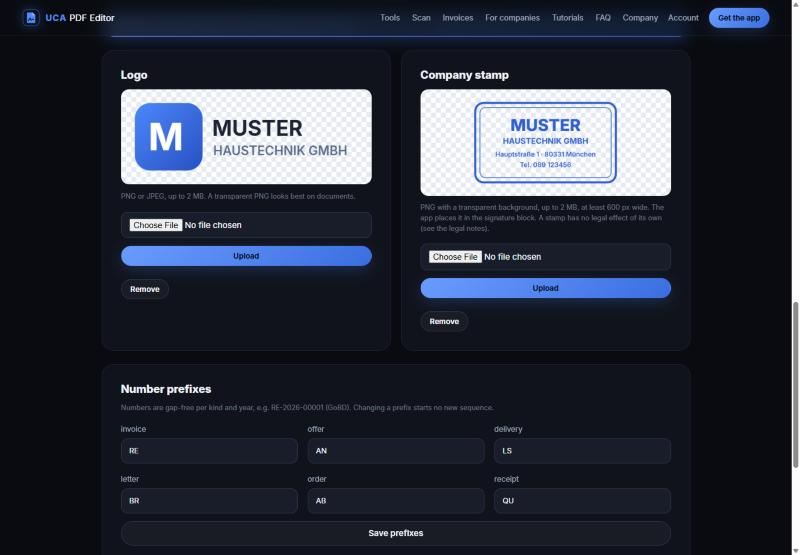
Upload your logo (PNG or JPEG) and your stamp (PNG with a transparent background works best). Without a stamp image the app prints a clean text stamp from your company data.
Optional: change the number prefixes (RE, AN, LS ...).
OverviewCompany data
Company admin: invite and verify employees
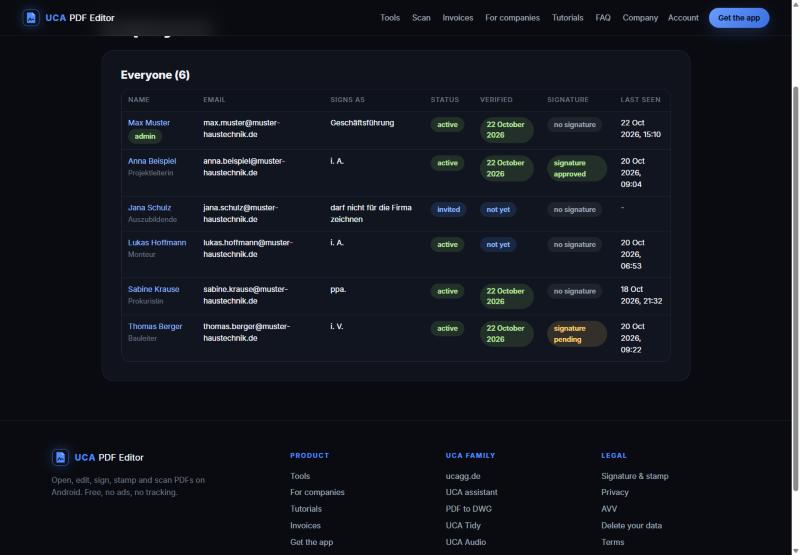
Under Employees enter the company email, name and job title, and choose the signing authority: i. A., i. V., ppa. or managing director. Decide whether they may sign and use the stamp.
Send the invitation. The employee installs the app and signs in - their status changes from "invited" to "active".
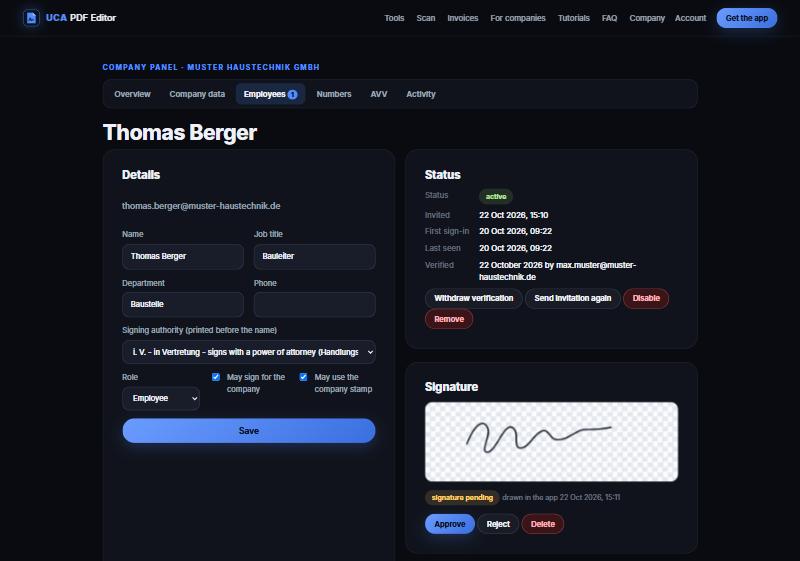
Open the employee and click Verify: you confirm the person and their authority. Only verified employees can stamp and sign for the company.
When the employee has drawn their signature in the app, you get an email. Check it and click Approve (or reject).
Someone leaves? Disable or Remove them: their app loses the company data at the next start.
EmployeesApprove a signature
Employee: sign in and stamp a document
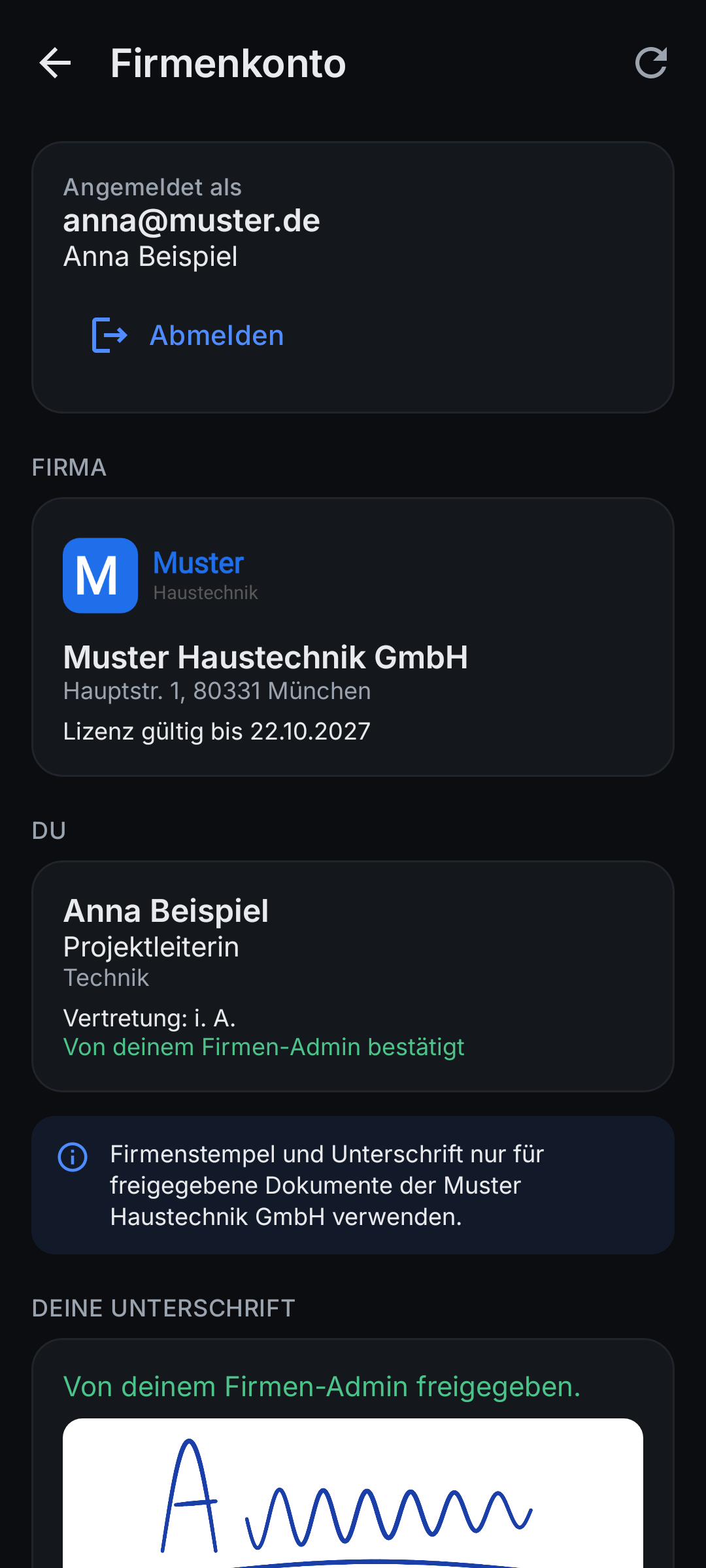
Install UCA PDF Editor. Open Settings > Company account and enter your company email. Type the 6-digit code from the email.
Your company name, logo, stamp and data appear. Tap Draw signature and draw it once - your company admin approves it.
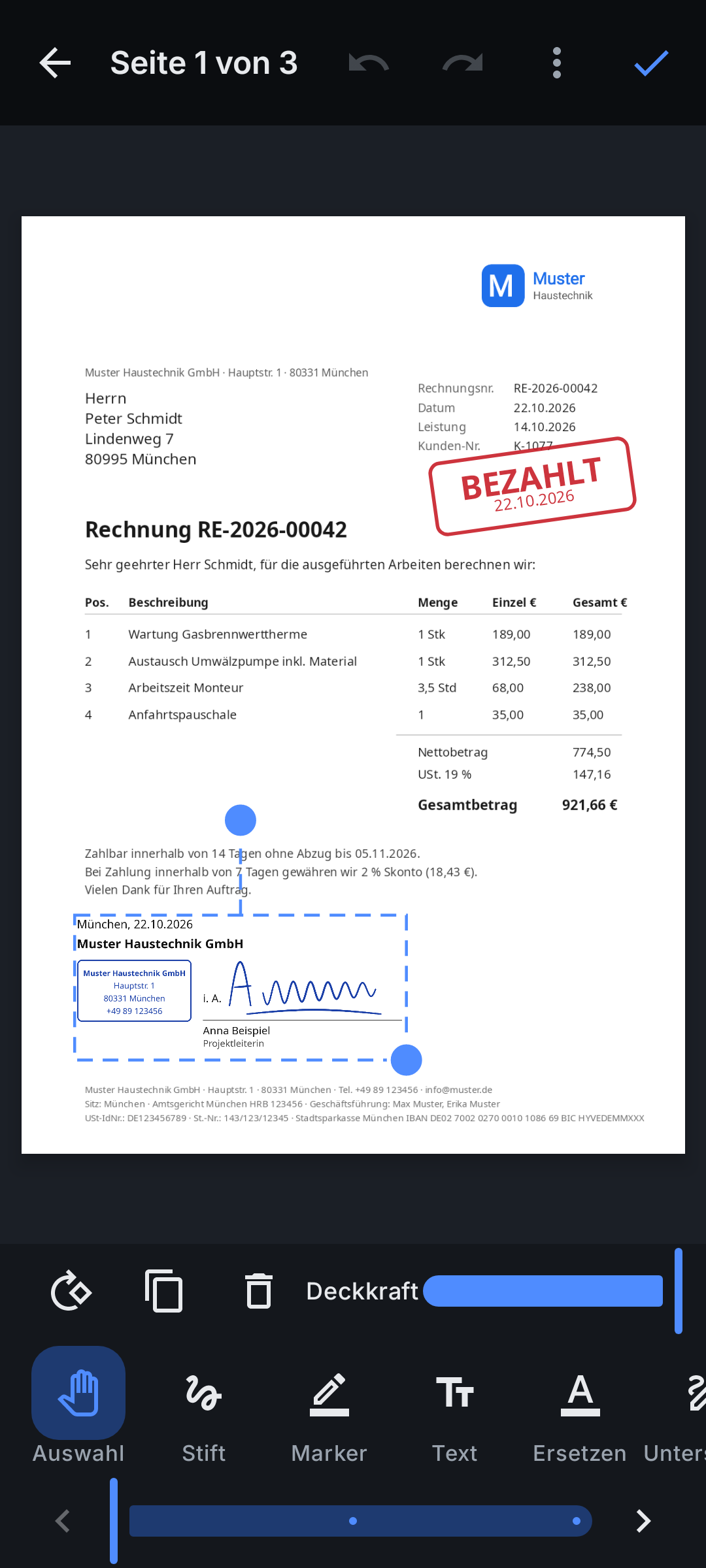
Open a document, tap Company stamp + signature: the stamp, your authority (e.g. "i. A."), your signature, name, title, place and date are placed as one block. Move and resize it, then save.
Invoices and offers made from the templates get the company letterhead, footer and a company number automatically (this needs a connection).
Click New company: enter the customer's company admin email, seats and period (within your quota) and the company data.
The company admin gets the invitation and continues in the company panel. You can extend, add seats, suspend or re-send the invitation; you never see employees' signatures.
Missing something? Use "Message the developer" in the app, or write to noreply@ucagg.de.